PixVerse Review 2026 (Updated): Free vs Paid, Tested on Real Products
Why I Wrote This PixVerse Review
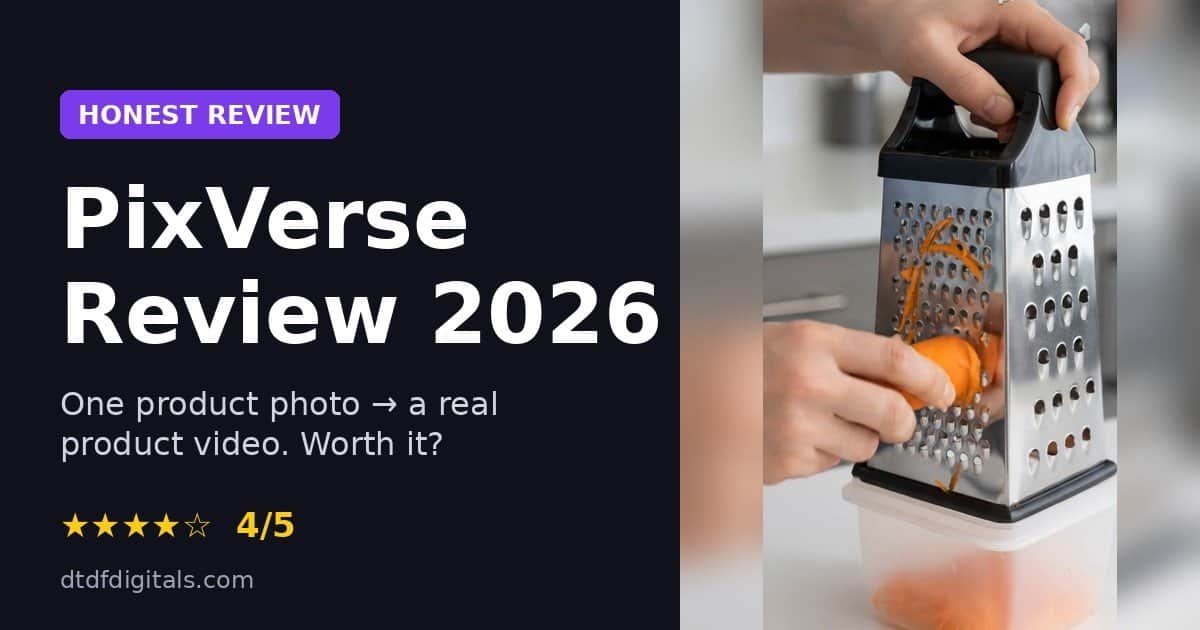
This PixVerse review answers one practical question: can a small online seller turn a single product photo into a scroll-stopping video without a camera crew, editing software or a big budget? I tested PixVerse AI by uploading one photo of a stainless steel box grater and asking it to bring the scene to life. A few minutes later I had a realistic five-second product demo that I could post on TikTok, Instagram Reels or a product page. Try PixVerse free here
Video sells. Shoppers want to see a product moving, being used and solving a problem, not just sitting still on a white background. But filming and editing every product takes time that most sellers simply do not have. That is exactly the gap AI video generators like PixVerse promise to fill.
In this review I cover what PixVerse is, how I tested it, a step-by-step guide to PixVerse image to video, the quality of the result, PixVerse pricing and free credits, the pros and cons, some alternatives and my tips for getting the most out of it. If you want to see every tool I use to run my shop, visit my tools page.
Quick verdict: PixVerse produced a genuinely usable product video from one photo. The visual quality impressed me. The free credits are limited and the interface has a few rough edges, but for online sellers it is well worth trying.
What is PixVerse AI?
PixVerse AI is an AI video generator that creates short video clips from a written description (text to video) or from an existing picture (image to video). You describe the scene, the movement and the mood, and the AI produces the footage for you. There is nothing to film and no editing timeline to learn.
PixVerse is available as a web app, on iOS and Android, and through an API for developers. Its newest flagship model, PixVerse V6, can generate continuous clips of up to 15 seconds at up to 1080p. It also supports native audio (sound effects, ambient sound and dialogue), multi-shot scenes and camera instructions such as push-in, pan, tilt and orbit.
Beyond the core generator, PixVerse offers AI templates, lip sync, video editing tools, character reference and a range of quick creative tools. For this review, though, I focused on the feature that matters most to sellers: PixVerse image to video, which takes a product photo you already have and turns it into motion.
How I Tested PixVerse for This Review
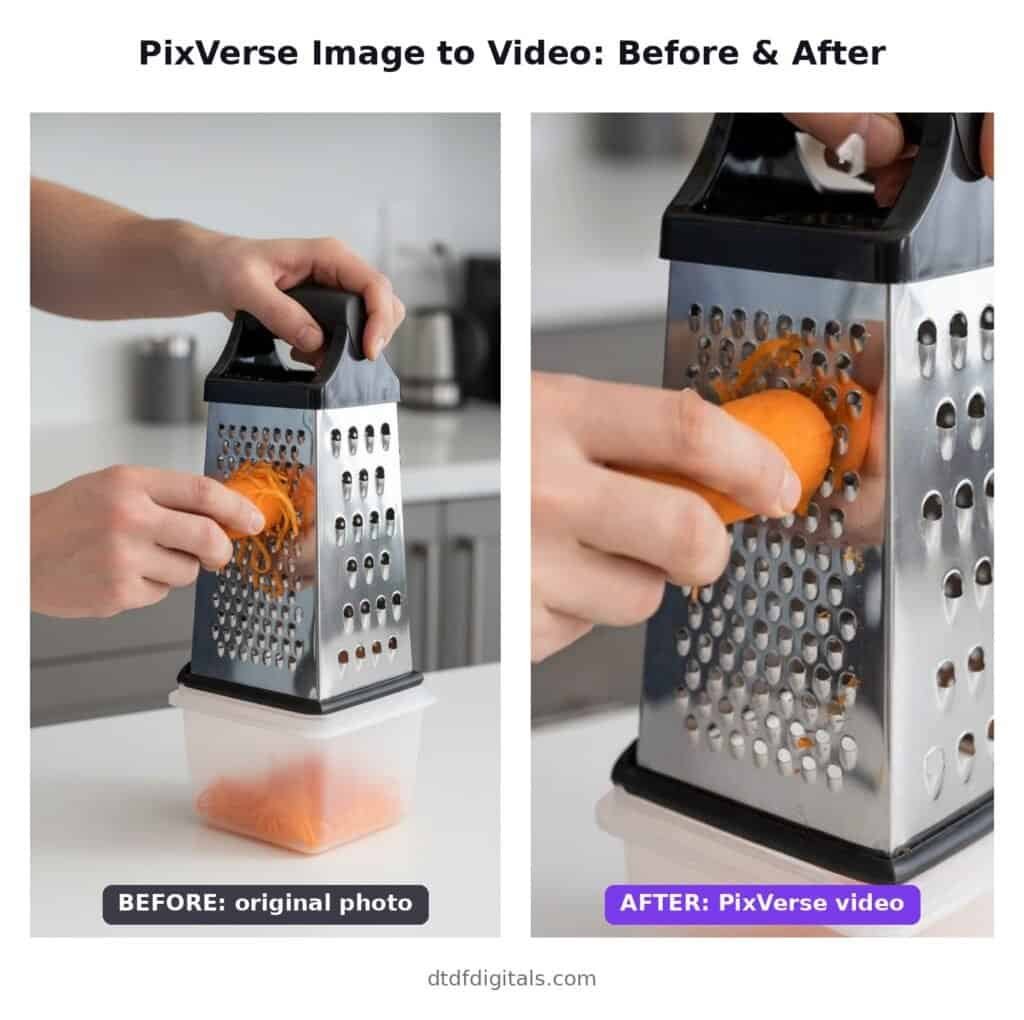
To keep this PixVerse review honest and useful, I ran a real-world test that any online seller could repeat. I used the free Basic plan and a single product photo: a hand grating a carrot on a four-sided stainless steel box grater, with the shreds falling into a clear plastic container on a white kitchen worktop.
This is a typical e-commerce image. It is bright, clean and shows the product in use, but it is still a static picture. My goal was to see whether PixVerse could add believable motion without distorting the product, since a warped or melting product is useless for selling.
Here are the settings I used:
| Setting | Choice |
|---|---|
| Mode | Image & Text (image to video) |
| Model | PixVerse V6 |
| Resolution | 720p, vertical 9:16 (720 × 1280) |
| Length | 5 seconds |
| Audio | Off |
| Multi-Shot | Off |
| Credits used | 40 |
And this is the prompt I wrote to describe the motion:
The hand smoothly grates the carrot down the stainless steel box grater, fine orange shreds falling into the clear container below. The other hand holds the black handle steady. Slow, gentle camera push-in, bright clean kitchen, soft natural light, realistic product demo.
How to use PixVerse image to video: step by step
Creating my first clip for this PixVerse review took less than ten minutes from sign-in to download. Here is the exact process.
- Sign in to PixVerse. Go to the PixVerse web app and log in. New accounts on the free plan receive starter credits, shown next to the lightning icon at the top of the screen.
- Open the Create section. Click the sparkle icon in the left-hand menu. The creation box appears at the bottom of the screen, with tabs for Video, Image and Audio.
- Choose Image & Text. Under the Video tab, select Image & Text. This is the PixVerse image to video mode.
- Upload your product photo. Click the image slot on the left of the prompt box and pick your photo. Use a sharp, well-lit image where the product is clearly visible.
- Describe the motion. In the prompt box, explain what should move and how. Mention the action, the camera movement, the lighting and the style. Specific prompts give far better results than vague ones.
- Pick your settings. Choose the model (I used PixVerse V6), the resolution and the length. Decide whether to switch Audio and Multi-Shot on, because both add to the credit cost.
- Check the credit cost and click Create. The Create button shows exactly how many credits the clip will use before you commit.
- Download your video. When the clip is ready it appears in your library. Hover over the video and click the download icon (a downward arrow) in the bottom-right corner to save it as an MP4.
One tip for step 8: the download button only appears when you hover over the video, and on smaller screens the prompt box can hide it. If you cannot see it, zoom your browser out (Ctrl and minus) and hover again.
Key features of PixVerse AI
PixVerse packs a lot into one creation box. These are the features most relevant to sellers and small brands.
Image to video. The star feature for e-commerce. Upload a product photo, describe the movement, and PixVerse animates it. It is ideal for sellers who already have good product photography but no video.
Text to video. If you have no photo, you can describe the whole scene in words. This is better for lifestyle and concept clips than for showing a specific product, because the AI invents the product’s appearance.
PixVerse V6 model. The latest model supports clips of up to 15 seconds at up to 1080p, according to PixVerse. It also understands camera directions such as push-in, pan, orbit and tracking shots, which helps product videos look professionally filmed.
Native audio. With Audio switched on, V6 can generate sound effects, ambient sound and dialogue together with the picture. I tested with audio off to save credits, so my clip came out silent.
Multi-Shot. This creates several camera angles (wide, medium and close-up) within one generation, like a mini edited advert.
Extra tools. The creation box also offers Reference, Template, Transition, Modify, Motion Control and Extend. These let you keep a consistent look, use ready-made effects, connect two images, edit a clip or make it longer.
Aspect ratios. Vertical 9:16 for TikTok, Reels and Shorts, widescreen 16:9 for YouTube and websites, and other formats are available.
PixVerse Review Results: Video Quality
The result was the most impressive part of this PixVerse review. The five-second clip looked like real footage of someone grating a carrot. The hand moved naturally, the orange shreds built up on the grater and the stainless steel kept its shape and shine. The kitchen background stayed calm and consistent, so nothing pulled attention away from the product.
Crucially for a seller, the grater itself was not distorted. AI video tools sometimes bend, blur or reshape objects as they animate them, which would make a product video misleading. Here the product stayed recognisable from the first frame to the last.
The clip came out at 720p in vertical 9:16 format, which is ready to upload straight to TikTok, Instagram Reels or YouTube Shorts. For a product page or a full-screen advert you may want 1080p, which costs more credits.
The one downside was sound. Because I left Audio switched off to save credits, the MP4 was silent. Silent product videos underperform on social media, so I added a royalty-free music track afterwards. Adding it took about two minutes. If you have the credits, switching Audio on inside PixVerse saves this extra step.
PixVerse pricing and free credits
PixVerse uses a credit system. Each video costs credits, and the exact cost depends on the model, resolution, length and whether Audio and Multi-Shot are switched on. The Create button always shows the cost before you generate, which I found reassuring.
In my test, the same five-second 720p V6 clip cost 50 credits with Audio and Multi-Shot on and 40 credits with both off.
PixVerse pricing at the time of writing, as reported by Magic Hour (prices in US dollars):
| Plan | Monthly price | Credits |
|---|---|---|
| Basic | Free | 60 starter credits, then 30 free credits a day |
| Standard | $10 | 1,200 every 30 days, plus 60 a day |
| Pro | $30 | 6,000 every 30 days, plus 60 a day |
| Premium | $60 | 15,000 every 30 days, plus 60 a day |
| Ultra | $249 | 25,000 every 30 days, plus 60 a day |
Annual billing brings the monthly price down (for example, Standard works out at about $8 a month). Commercial usage rights depend on your plan, so check them before using videos in paid adverts.
What the free credits get you: the PixVerse free credits are enough to test the tool properly. My starter credits covered one clip, with some left over. After that, the 30 free daily credits are not quite enough for one 40-credit clip, and they expire at the end of each day rather than building up. For regular content, the Standard plan is the realistic starting point. At 40 credits per clip, its 1,200 monthly credits cover roughly 30 videos, before counting any re-tries.
Prices change often, so check the official PixVerse site before you buy.
PixVerse Review: Pros and Cons
| Pros | Cons |
|---|---|
| Realistic motion from a single product photo | Free daily credits (30) do not cover one standard clip |
| Product kept its shape with no visible distortion | Download button is hidden until you hover, and can be covered by the prompt box |
| Fast: under ten minutes from upload to download | No download option in the video’s three-dot menu |
| Shows the credit cost before you generate | Audio costs extra credits; without it, videos are silent |
| Vertical 9:16 output ready for TikTok and Reels | Daily credits expire and do not build up |
| Camera directions (push-in, pan, orbit) are understood | Commercial rights depend on your plan |
| Web, iOS, Android and API access | Prices change often, so plans need re-checking |
PixVerse alternatives
This PixVerse review would not be complete without alternatives, because PixVerse is not the only AI product video generator worth considering. I have not tested these alternatives side by side, so treat this as a starting point for your own trials rather than a ranking.
| Tool | Worth a look if you want |
|---|---|
| Runway | A full creative suite with AI video plus editing tools in one place |
| Kling AI | Long, cinematic clips with strong motion realism |
| Hailuo AI (MiniMax) | Expressive, dynamic movement in short clips |
| Luma Dream Machine | Smooth camera moves and quick experimentation |
| Google Veo | High-end video with built-in sound, often through Google’s own apps |
| CapCut | Simple editing, music and templates to finish AI clips for social media |
Most of these use credit systems similar to PixVerse, so the smartest approach is to test the same product photo and prompt in two or three tools using their free tiers. Compare how well each one keeps your product’s shape, then decide which subscription is worth paying for.
Tips for online sellers using PixVerse
These tips from my PixVerse review testing will help you get better product videos and waste fewer credits.
- Start with a great photo. PixVerse animates what it is given. A sharp, bright photo with the product clearly in frame produces a far better video than a dark or cluttered one.
- Show the product in use. A photo with hands using the product gives the AI an obvious action to animate. My grater photo worked well because the grating motion was already implied.
- Write specific prompts. Describe the action, the camera movement, the lighting and the style. “Slow push-in, soft natural light, realistic product demo” beats “make it move”.
- Keep movement gentle. Slow, simple motion keeps the product’s shape accurate. Fast, complex action is more likely to distort it.
- Test with Audio and Multi-Shot off. Save credits on your first attempts, then switch extras on once your prompt works.
- Add sound before posting. If your clip is silent, add music or sound effects in a free editor, or use trending sounds inside TikTok and Instagram.
- Stay honest. Make sure the video shows the product accurately. A video that makes a product look bigger, shinier or more capable than it is can lead to returns, bad reviews and breaches of advertising rules.
- Download straight away. Save each finished MP4 to your computer so you are not relying on your PixVerse library.
PixVerse review FAQ
Is PixVerse free?
Yes, PixVerse has a free Basic plan with starter credits and 30 free daily credits. That is enough to test the tool, but regular users will need a paid plan.
How many credits does a PixVerse video cost?
It varies by model, resolution, length and extras. My five-second 720p PixVerse V6 clip cost 40 credits without audio and 50 credits with Audio and Multi-Shot on.
Is PixVerse good for product videos?
In my test, yes. PixVerse image to video turned a single product photo into a realistic demo without distorting the product.
Why is my PixVerse video silent?
The Audio option was probably switched off when the video was generated. Switch it on before you click Create, or add music afterwards in a video editor.
How do I download a PixVerse video?
Hover over the finished video in your library and click the download icon in its bottom-right corner. If the prompt box covers it, zoom out in your browser.
Can I use PixVerse videos commercially?
Commercial usage rights depend on your subscription plan. Check PixVerse’s current terms before using clips in paid adverts.
Update: I Upgraded to the PixVerse Standard Plan
Updated 15 October 2026. After this PixVerse review went live, I upgraded to the Standard plan to make a short video series for my kitchen products shop. This is what changed once I was paying.
What the Standard plan includes
According to PixVerse’s pricing page, Standard costs $10 a month (or $8 a month billed yearly) and includes:
- 1,200 credits every 30 days, plus 60 daily credits
- Watermark-free and ad-free videos
- Resolution up to 720p (1080p and 4K need the Pro plan or higher)
- Up to 3 videos generating at the same time
What it cost me in practice
Each 5-second, 720p clip with Audio and Multi-Shot switched off cost 40 credits, the same as on the free plan. On my first day I made six clips, using 240 credits. A complete 16-second episode for my series uses five clips, which is 200 credits, or roughly £1.30 of the monthly plan.
What worked well
- No watermark. When you click Download, PixVerse asks whether you want the Watermarked or Watermark-free version. Pick Watermark-free.
- Products kept their shape. I animated photos of a chainmail scrubber and a 3-in-1 peeler, and both stayed accurate.
- Faster batches. Generating three clips at once made a five-scene episode quick to produce.
What to watch out for
- Unwanted cuts. Even with “single continuous shot, no cuts” in the prompt, PixVerse sometimes jumped to a different shot halfway through a clip. Expect to trim some clips in an editor.
- Aspect ratio. Text-only prompts defaulted to landscape 16:9. For TikTok and Reels, switch to 9:16 in the settings before you click Create.
- Refunds. PixVerse only refunds a subscription you have not used yet, so test on the free plan first.
Updated verdict on the paid plan: for an online seller posting product videos every week, Standard is good value. Start on the monthly plan rather than the yearly one, set yourself a one-month test, and cancel before it renews if the videos are not bringing in clicks or sales.
PixVerse Review Verdict: Is It Worth It?
After testing it with a real product photo, my PixVerse review verdict is positive. PixVerse AI turned one still image into a realistic, ready-to-post product video in minutes, and the product kept its shape throughout. For online sellers who have photos but no time or budget for filming, that is a genuinely useful capability.
It is not perfect. The free credits run out quickly, the download button is easy to miss, and you need to remember to switch on Audio or add sound yourself. None of these are deal-breakers, but they are worth knowing before you start.
Rating: 4 out of 5. Start on the free plan, test it with your best product photo, and upgrade to the Standard plan if the results work for your shop. New to selling online? Grab my free seller resources and see the other tools I recommend on my tools page.