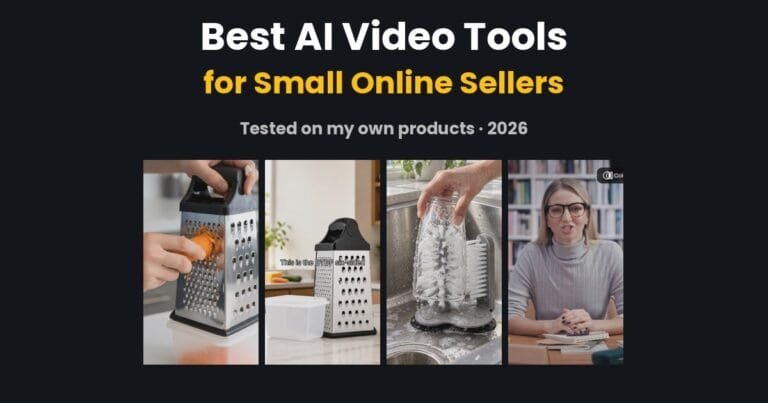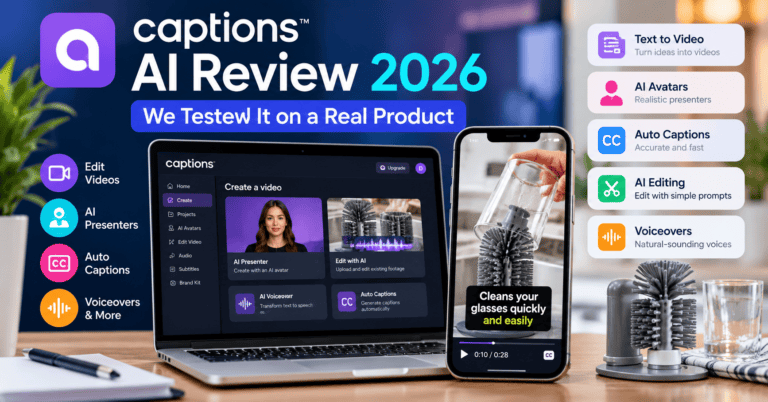
AI Product Video for Small Business: I Made One for £0 (Honest Review)
Why I tried an AI product video for my small business
I made an AI product video for my small business without filming a single second of footage. I’m Dave, and I run DTDF Home & Kitchen. I’ve sold over 500 products through my own store and on Amazon, and if there’s one thing I’ve learned, it’s that kitchen products sell better on video. People want to see the thing being used. The trouble is that filming, lighting, editing and recording a voiceover for every listing takes hours I don’t have, and paying someone else to do it is hard to justify for a single product.
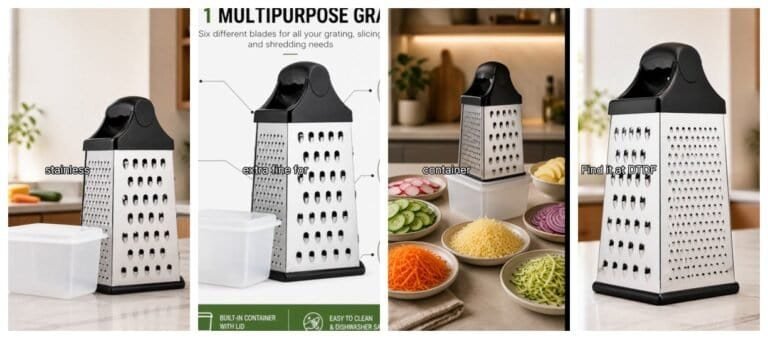
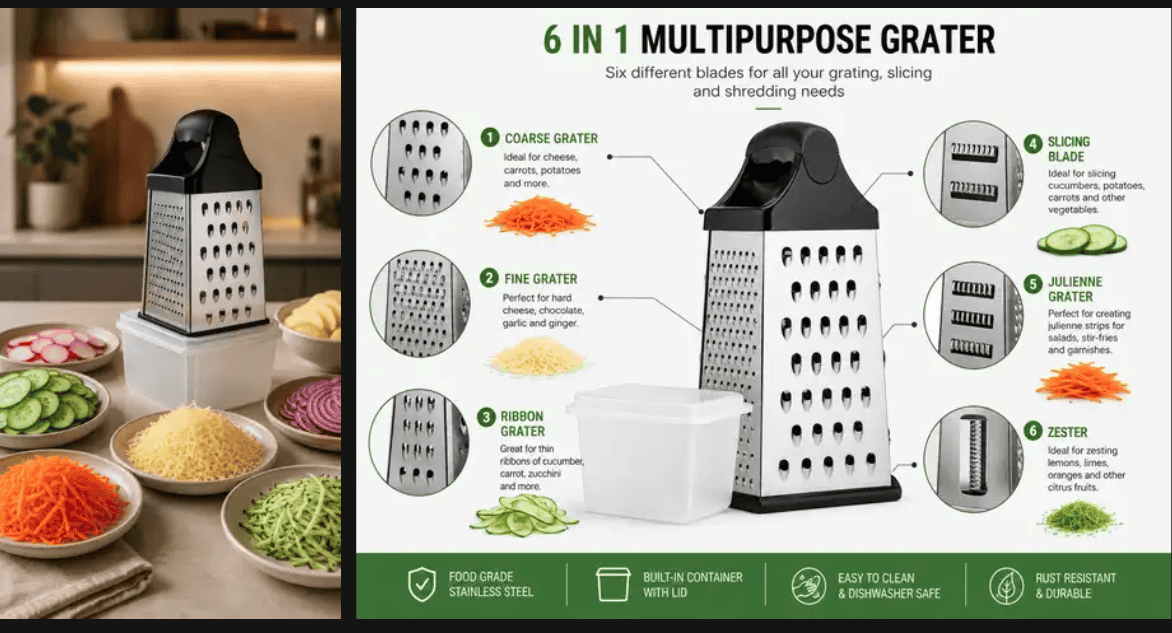
So I set myself a simple test. I’d take one real product, my six-sided stainless steel grater with its storage container and lid, and try to make a 30 to 40 second vertical video for TikTok, Instagram Reels and my product page. No new filming, only the photos I already had, and no spending, so free plans only.
What you need before you start
You probably have most of this already. I used four product photos: a lifestyle shot in a kitchen, an infographic showing the six blades, a photo with grated cheese and veg, and a close-up. Clear, bright photos matter more than anything else here. On top of that you’ll need a short script of around 80 to 100 words, which gives you roughly 30 seconds, plus free accounts with ElevenLabs for the voiceover and InVideo for the video itself.
One quick word of warning: if your photos came from a supplier, check you’re allowed to use them in ads. Your own photos are always the safest bet.
Step 1: Write a 30-second script (this matters more than the tools)
The script is what makes or breaks the video. AI can read it out and illustrate it, but it can’t rescue a vague message. I kept mine to four simple parts: a problem the buyer recognises, the product name, each feature tied to something they’ll actually do with it, and finally where to buy. Here’s exactly what I used:
Grating cheese shouldn’t mean cheese all over the counter. This is the DTDF six-sided stainless steel grater. Coarse for carrots and courgettes. Medium for everyday cheese. Fine for parmesan and chocolate. Extra-fine for zest, ginger and nutmeg. A slicer for cucumber and potato. And a wavy slicer for crinkle-cut veg. Grate straight into the container underneath, then pop the lid on and store what’s left in the fridge. Less mess, less washing up, more time for cooking. Find it at DTDF Home & Kitchen. Link below.
You’ll notice every blade gets a name and a use. That’s deliberate, because most people watch product videos with the sound off, so the captions do the selling. “Six sides, six uses” tells a shopper nothing, whereas “fine for parmesan and chocolate” paints a picture.
Step 2: The voiceover in ElevenLabs
This turned out to be the easiest part of the whole project. I opened Text to Speech, pasted in the script and went to pick a voice. The default was a deep, serious male voice that felt completely wrong for a kitchen grater, so I swapped it for Rachel, a warm and friendly voice from the library. One click on Generate speech and ElevenLabs gave me two takes of about 35 seconds each. I listened to both, picked my favourite and downloaded the MP3.
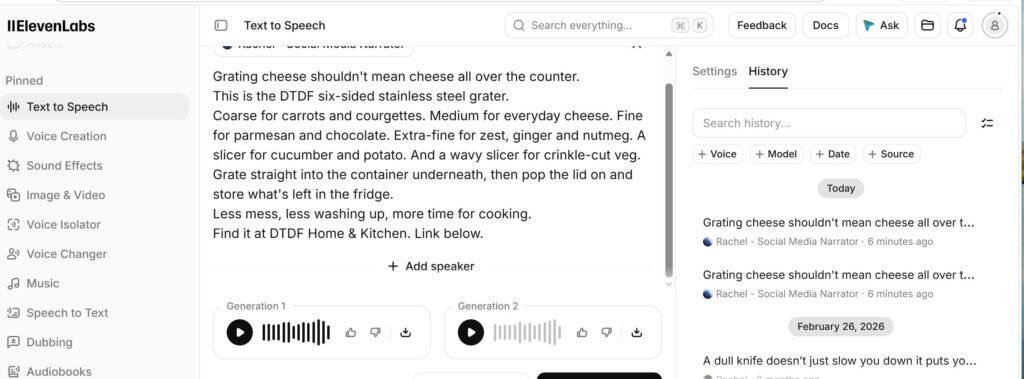
The only thing that caught me out was a note I’d left in square brackets in my first draft. ElevenLabs treats anything in square brackets as a sound or delivery instruction rather than words to read, so it turned pink in the editor and would never have been spoken. Strip out any brackets before you generate.
As for cost, the voiceover used around 550 characters of credit out of the 10,000 on the free plan. That’s roughly 18 voiceovers of this length before you’d need to pay anything, which made it the best value of everything I tested.
Step 3: The video in InVideo (and the credit surprise)
I started a new project using InVideo’s AI Agent and uploaded the ElevenLabs MP3 along with my four product photos. Then I wrote a fairly detailed prompt, asking for a vertical 9:16 video for TikTok and Reels that used only my voiceover and only my photos for the product, with large captions, quiet background music and a closing card saying “DTDF Home & Kitchen, link below”. Before it got going, it asked a few one-off setup questions, such as a name for the assistant and a short description of my business, and then had me choose a background track.
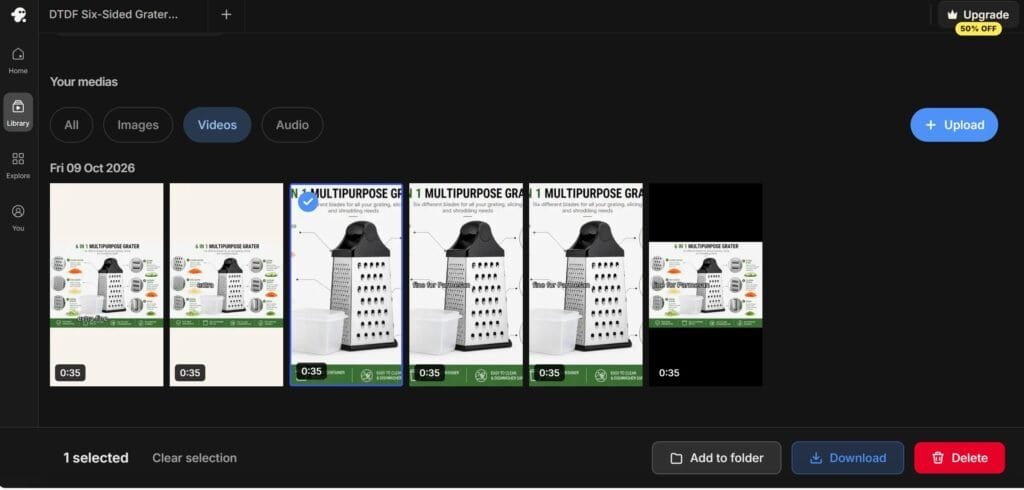
This is where it got interesting. The agent built the video and exported several versions, but in between it kept stopping to check its own work, with messages like “checking whether the stills actually move”. Every one of those checks cost credits, and by the time it was done my free balance was at zero and InVideo was offering me a time-limited upgrade deal. The good news is that the fifth export was genuinely usable. The captions matched the voiceover, the still photos had gentle movement so nothing felt static, and the end card looked clean.
If you’re doing what I did, a simple photos-plus-voiceover video, my advice is to skip the AI agent and use InVideo’s free Timeline Editor instead. You place the photos along the voiceover yourself, it takes about 15 minutes, and it doesn’t touch your AI credits. Save the agent for jobs where you need it to find footage or write the script.
The result: what it cost and the finished video
The total cost came to £0, although InVideo’s free credits only stretched to one project. Here’s how the two tools compared:
| ElevenLabs | InVideo | |
|---|---|---|
| Used for | 35-second voiceover, 2 takes | Turning 4 photos and a voiceover into a video |
| Plan | Free | Free |
| Credits used | About 550 of 10,000 | All of them |
| Output | 2 usable MP3s | 5 exports, the fifth one usable |
| Would I use it again? | Yes, straight away | Yes, but with the Timeline Editor |
Before you post your own, check whether your plan adds a watermark or restricts commercial use. Free plans often do, and that matters if the video is going into a paid ad or onto an Amazon listing.
My honest verdict on each tool
ElevenLabs review: recommended
ElevenLabs impressed me. The voice sounded natural rather than robotic, I had two takes to choose from in seconds, and the free credits are generous enough for plenty of short product voiceovers. My only gripes are that the default voice didn’t suit a friendly product, so you’ll want to spend a minute browsing the voice library, and that the square-bracket rule isn’t obvious until it catches you out. If you want a clear voiceover without recording your own voice, it’s an easy recommendation. See ElevenLabs
InVideo review: good, with a warning
InVideo did a better job than I expected with still photos. The video felt alive, the captions were accurate and easy to read, and it stuck to my instructions to use my own voiceover and product photos. Where it let me down was the AI agent spending my credits on checking its own work, the setup questions that came before any video, and an upgrade offer that popped up the moment I’d run out, which felt a bit pushy. It’s a good choice for sellers who want a polished video from photos, as long as you’re willing to use the Timeline Editor for simple jobs. See InVideo
Mistakes to avoid when making an AI product video for a small business
The biggest mistake is starting without a script. If you let the AI write it, you’ll get generic lines that could describe any product on Amazon. The second is leaving notes or brackets in your script, because ElevenLabs won’t read them and your voiceover will simply skip those words.
It’s also worth telling InVideo clearly to use only your photos for the product. Otherwise it may add stock footage of a different grater, which is misleading to buyers. Don’t use the AI agent for a simple job either, since the Timeline Editor does it without burning credits. And finally, check for watermarks and commercial-use limits before posting, and use the AI label where the platform asks for it. TikTok and Instagram both have one.
FAQ
Can you make an AI product video for a small business for free? Yes. I made a 35-second product video using the free plans of ElevenLabs and InVideo. The catch is that InVideo’s AI agent can use all your free credits on one project, so plan carefully.
Is InVideo AI worth it for small sellers? For turning product photos into short videos, yes. Use the Timeline Editor for simple jobs and keep the AI agent for bigger projects, or you’ll run out of credits quickly.
How much does an ElevenLabs voiceover cost? My 35-second voiceover used about 550 characters of credit out of the 10,000 on the free plan. Paid plans give you more credits each month.
Do I need to film my product? No. Good, bright product photos were enough for me. Real video clips would make it even better, but they’re not essential.
Can I use an AI product video on Amazon? Check Amazon’s current video guidelines and your AI tool’s licence before uploading, as some free plans add watermarks or restrict commercial use.
Final thoughts: is an AI product video worth it for a small business?
For a small shop, I think an AI product video for a small business is worth it. I went from four photos to a usable 35-second product video without filming anything, without editing software and without spending a penny. If you give it a go, start with ElevenLabs for the voice, keep your InVideo project simple, write the script yourself and check the licence before you post.
Next, I’m testing image-to-video tools on the same grater photo, to see whether they can add real motion, like cheese actually falling into the container. I’ll share the results here, good and bad. In the meantime, if you want the setup I use to turn video viewers into repeat buyers, grab my free Seller Starter Kit. It’s the simple funnel and email follow-up I use for my own shop. Get the Free Starter Kit