I Run 13 Websites on One Hostinger Plan: Here’s How I Built My Seller Site
Disclosure: this Hostinger review contains affiliate links. If you buy hosting through my link, I may earn a commission at no extra cost to you. I only recommend Hostinger because I pay for it and run my own businesses on it.
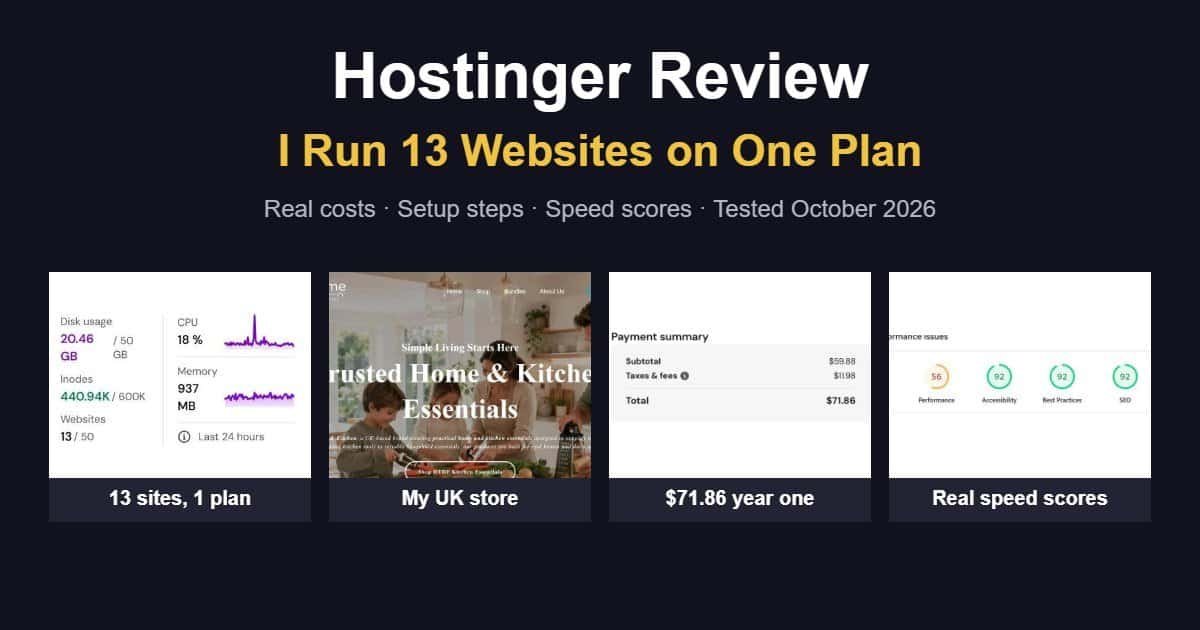
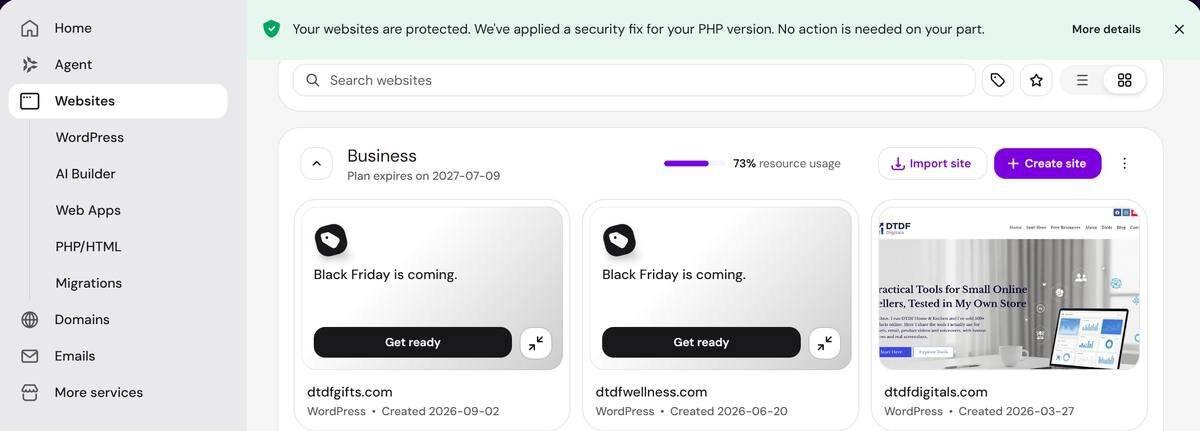
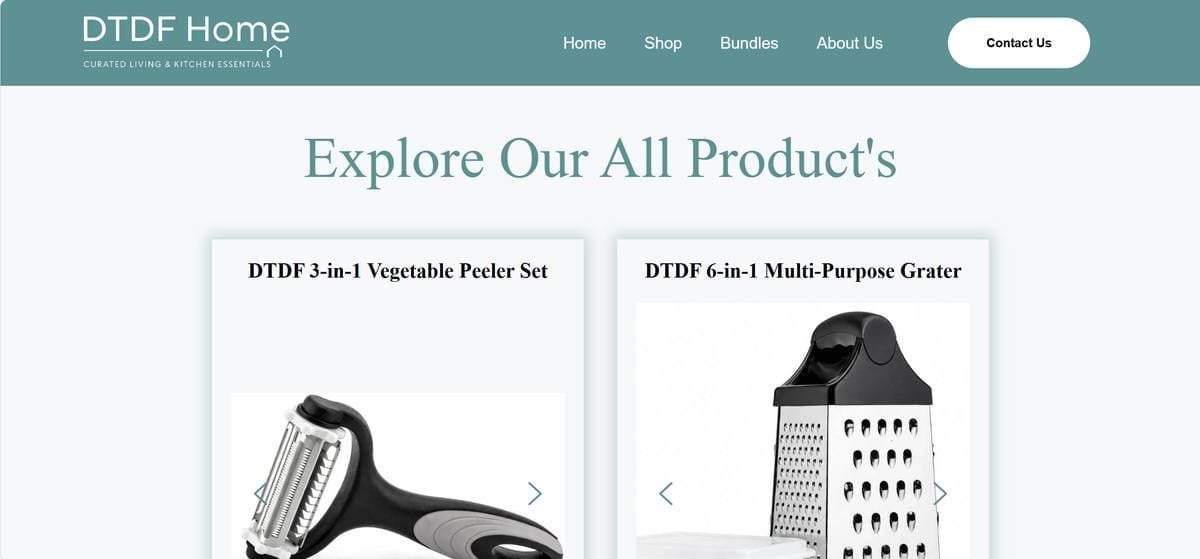
I run 13 websites on a single Hostinger plan. One of them is my UK home and kitchen store, dtdfhomeandkitchen.com, where I sell practical kitchen tools like a 3-in-1 vegetable peeler set and a 6-in-1 grater. The others include an Amazon affiliate site and my DTDF Digitals site, where I share the tools I use to run my store. If you’ve read my Systeme.io review or my guide to the best AI video tools for small online sellers, you’ll know I test everything on my own business first.
This isn’t a Hostinger review written from a free trial. It’s how I actually built my seller website, what I paid down to the cent, what went wrong, and what I’d do differently. If you’re a small seller wondering whether Hostinger is good enough to run a real shop on, this should answer it.
If you just want the deal, you can see Hostinger’s current prices here.
Hostinger review at a glance: my setup
| Plan | Business Web Hosting, billed yearly |
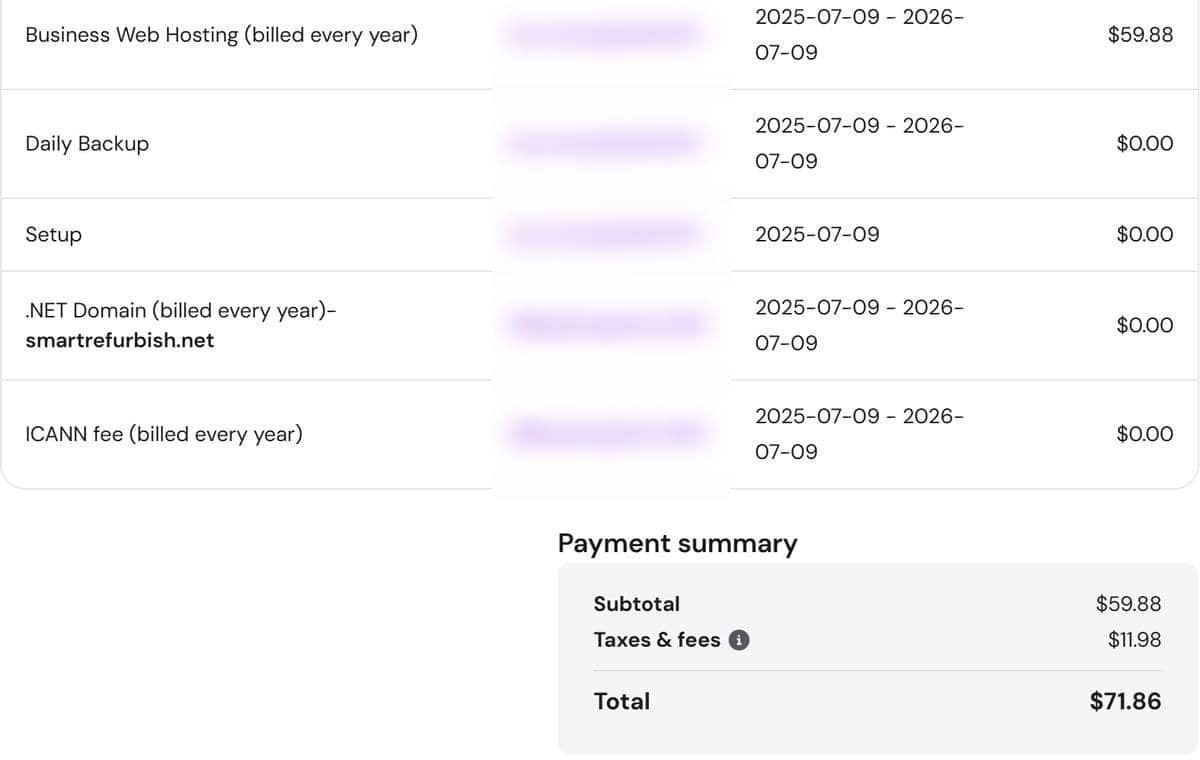
| What I paid for year one | $59.88 + $11.98 tax = $71.86 |
| Renewal price | $203.88 a year |
| Websites on the plan | 13 (the plan allows 50) |
| Storage used | About 20 GB of 50 GB |
| Store built with | WordPress, WooCommerce and Elementor |
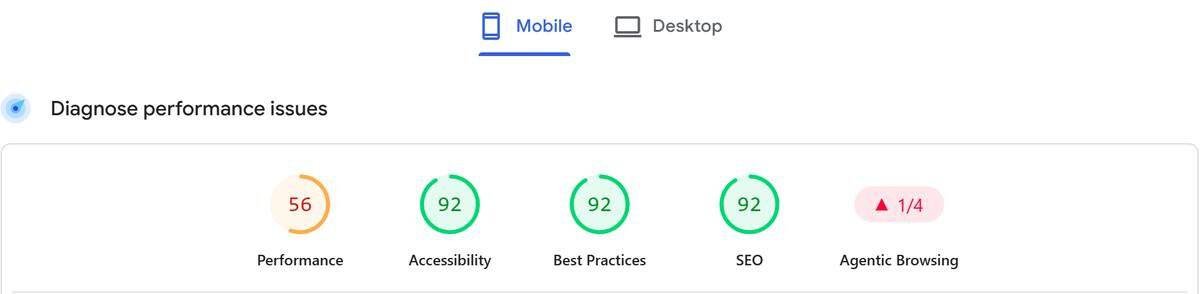
| Store’s mobile PageSpeed | 56 Performance, 92 Accessibility, 92 Best Practices, 92 SEO |
My Hostinger review in one line: for a small seller who wants to own their store and run more than one site, Hostinger is the best value I’ve found. Just go in knowing that the renewal price is much higher than the first year.
Why I chose Hostinger: the short review
I compared a few hosts before I signed up. Three things made the decision, and they’re the same reasons I’ve stayed through 13 sites.
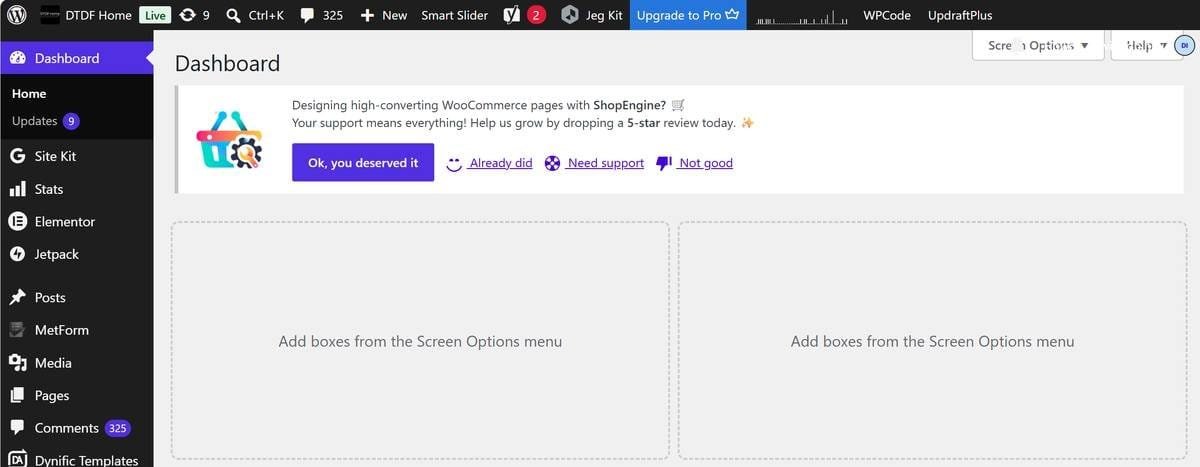
It’s simple enough for a non-developer. I’m a seller, not a programmer. Hostinger’s control panel, called hPanel, puts everything in one place: websites, domains, emails, billing and backups. In addition, installing WordPress is a few clicks, and every site has a one-click WP Admin button, so I never have to remember a login page.
The price was right for starting out. For example, I signed up during one of Hostinger’s big sales, and my first year on the Business plan cost $59.88 before tax. After all, for a new store with no sales yet, keeping fixed costs low mattered more than anything.
The customer support is genuinely fast. This is the one I’d put first now. Whenever I’ve opened a chat with an issue, they’ve replied quickly and stayed with it until it was fixed. Indeed, when your shop is down, you’re losing sales by the minute, and fast support is worth more than any feature on the sales page.
Which Hostinger plan should a seller choose?
For this Hostinger review, I’ve focused on the three plans most sellers consider: Premium, Business and Cloud Startup. The intro prices change with every sale, but the limits and renewal prices are what you’ll live with long term.
| Premium | Business | Cloud Startup | |
|---|---|---|---|
| Websites | 3 | 50 | 100 |
| Storage | 20 GB | 50 GB NVMe | 100 GB NVMe |
| Backups | Weekly | Daily | Daily |
| Free CDN | No | Yes | Yes |
| Free domain (year one) | Yes | Yes | Yes |
| Renewal price | About $10.99/month | About $16.99/month | About $25.99/month |
Plan details and renewal prices from Hostinger’s published pricing at the time of writing. Check the live price before you buy, as sales change the intro price often.
The plan I recommend in this Hostinger review
I’d recommend Business for most sellers, and it’s what I use. First, daily backups alone make it worth the step up from Premium. If a plugin update breaks your shop on a Friday night, you can roll back to yesterday instead of last week. In addition, you get the free CDN, which helps pages load faster for visitors far from the server, and room for 50 sites if you grow like I did.
Meanwhile, Premium is fine for a simple blog or a single small store on a tight budget. On the other hand, Cloud Startup only makes sense once your store gets a lot of traffic, because you pay a lot more for power a new shop won’t use.
How I built my seller website, step by step
Here’s the exact order I followed. You can do the whole thing in an afternoon, apart from waiting for the domain, which I’ll come to.
Part 1: Getting your site online
- Buy the plan. Pick Business, choose the longest term you’re comfortable paying for upfront (the monthly price drops a lot on longer terms), and create your Hostinger account. Get Hostinger here.
- Connect your domain. If you claim the free domain, Hostinger sets it up for you. My store’s domain was registered elsewhere, so I had to point it to Hostinger by changing its nameservers. In hPanel, go to Domains, choose your domain and open DNS / Nameservers to see the two nameserver addresses. Then log in where you bought the domain and replace its nameservers with those two.
- Install WordPress. In hPanel, go to Websites, click Create site and choose WordPress. You pick the site name, admin username and password, and Hostinger installs it in a few minutes.
Part 2: Turning it into a shop
- Install WooCommerce. In your WordPress dashboard, go to Plugins → Add New, search for WooCommerce and install it. The setup wizard asks for your store address, currency (pounds for a UK store) and what you sell. Then add your first products with clear photos, a price and a proper description.
- Set up payments and shipping. Under WooCommerce → Settings, connect a payment provider such as Stripe or PayPal so you can take card payments, and set up shipping zones. For a UK-only shop, one zone for the UK with a flat rate or free shipping over a set amount is the simplest place to start.
- Design the store. I used Elementor to build my pages, with a WooCommerce add-on for the shop and product layouts. Above all, keep it simple: a homepage that says what you sell and who it’s for, a shop page, and product pages that answer buyers’ questions. If you want product videos too, my AI product video guide shows how I made one for £0.
- Add the pages buyers expect. Before going live, create an About page, a Contact page, and your Returns, Privacy and Terms pages. In particular, UK shoppers look for a clear returns policy before they buy, and you’ll need a cookie consent banner if you use analytics or ads.
- Check SSL and go live. Hostinger includes free SSL, and hPanel shows a green SSL tick on each site’s dashboard once it’s active. Visit your store with https:// in front of the address to confirm the padlock shows, then place a test order yourself before telling anyone about it.
What my finished store looks like

The one problem I hit: connecting my domain
The hardest part wasn’t WordPress or WooCommerce. It was getting my domain to connect. I updated the nameservers exactly as described above, but the site still wouldn’t load, and going live was delayed while I troubleshot it.
Here’s what’s happening behind the scenes, because it helps to know. When you change nameservers, you’re telling the internet’s address book that your domain now lives at Hostinger. That change has to spread to servers all over the world, which can take anywhere from a few minutes to 48 hours. As a result, some people see the new site during that time, some see nothing, and you can see something different on your phone and your laptop.
How to fix it if it happens to you
- Wait before you panic. In other words, give it up to 48 hours. Your setup may be right and simply still spreading.
- Check for typos. Copy the nameservers straight from hPanel rather than typing them. Otherwise, one wrong character stops everything.
- Remove old records. Some registrars keep old DNS records or a “parking” page switched on. Turn those off.
- Use a checker. A free DNS propagation checker website shows which nameservers different parts of the world are seeing for your domain.
- Message support. If it’s still not working after 48 hours, open a chat with Hostinger. They can see exactly what your domain is pointing to.
What it really costs, with my real numbers
Most hosting reviews quote the headline price and stop there. This Hostinger review uses what I actually paid.
My first year vs renewal
I’m on Business Web Hosting, billed yearly. My first year cost $59.88 (about $4.99 a month), plus $11.98 in taxes, so $71.86 in total. That included a free .net domain for the first year, daily backups and free setup.
However, the catch, as with nearly every host, is the renewal. My plan now renews at $203.88 a year, about $16.99 a month, which is more than three times what I first paid. My free domain renews at $17.99 a year.
| Hosting | What it works out to | |
|---|---|---|
| Year one (sale price) | $59.88 | About $4.99 a month |
| Year two (renewal) | $203.88 | About $16.99 a month |
| Year three (renewal) | $203.88 | About $16.99 a month |
| Three years in total | $467.64 | About $13 a month on average |
Hosting only, before tax and domain renewals.
Even so, here’s the number that changed how I see it. Because I run 13 sites on the one plan, even at the full renewal price it costs me about $1.31 per site per month. If you plan to run more than one website, that’s where Hostinger’s value really shows.
Hostinger review speed test: how fast is my site?
No Hostinger review is complete without a speed test, so I ran my store’s homepage through Google PageSpeed Insights, and I’ll be honest with you. On mobile it scored 92 for Accessibility, Best Practices and SEO, but only 56 for Performance.
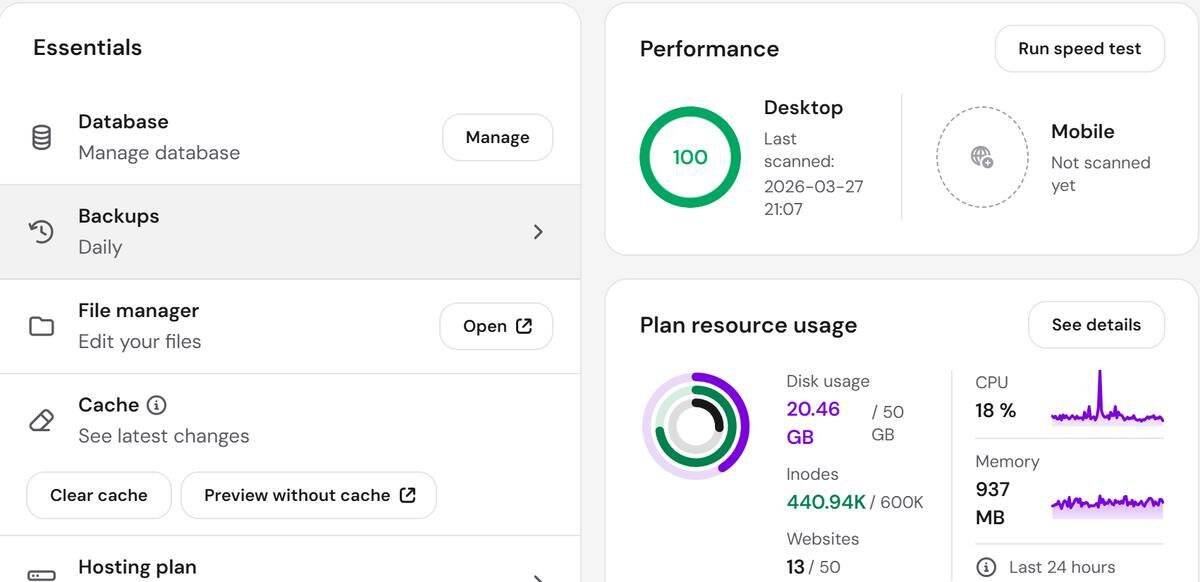
However, that Performance score isn’t all down to the hosting. My homepage has a large image slider, big lifestyle photos and quite a few plugins, and those slow a page down on phones more than anything. A simpler site of mine on the same plan scored a perfect 100 on desktop in hPanel’s own speed test, which shows the server itself is fast.
If your mobile score is low, these fixes make the biggest difference before you think about changing host:
- Compress your images and serve them in WebP format
- Replace a homepage slider with one strong image
- Remove plugins you don’t use
- Use LiteSpeed caching, which Hostinger’s servers are built for
What hPanel gives you day to day
Once your store is live, you’ll spend more time in hPanel than you’d expect. These are the features I actually use:
- Daily backups. Every site is backed up daily, and you can restore with a couple of clicks. I check there’s a recent backup before every big plugin or theme update.
- Cache controls. One click clears the cache, and “Preview without cache” lets you see changes instantly while you’re editing.
- SSL, CDN and LiteSpeed status. Each site’s dashboard shows green ticks when they’re active, so you can see at a glance that everything’s switched on.
- Site health and security. hPanel lists your WordPress version, theme and plugins, flags what needs updating and warns you about known vulnerabilities. It also includes a malware scanner.
- Resource usage. You can see your storage, CPU and memory use, so you know when you’re getting close to your plan’s limits.
Hostinger review vs Shopify: which suits a small seller?
If you’re reading a Hostinger review, you’re probably weighing it up against Shopify too, so here’s how they stack up for a small UK store.
| Hostinger Business + WooCommerce | Shopify Basic | |
|---|---|---|
| Monthly cost | About $4.99 in year one, $16.99 on renewal | £19 a month on annual billing, £25 monthly |
| Number of stores | Up to 50 websites | One store |
| Extra transaction fee | None from Hostinger or WooCommerce | 2% extra if you don’t use Shopify Payments |
| Who maintains it | You (updates, plugins, backups) | Shopify |
| Ownership | You own the site and its files | You rent the platform |
Shopify UK prices from Shopify pricing coverage updated May 2026.
Choose Shopify if you want zero technical work and are happy paying more each month for it. Choose Hostinger with WooCommerce, on the other hand, if you want lower costs, no extra transaction fees and the freedom to run several sites, and you’re willing to spend a little time keeping WordPress updated.
Beginner mistakes to avoid
I’ve made some of these myself across 13 sites, so learn from me:
- Ignoring updates. Outdated plugins and themes are the most common way WordPress sites get hacked. Check hPanel’s site health each week and update, after taking a backup.
- Installing too many plugins. Each one adds weight and risk. Therefore, if you’re not using it, delete it.
- Forgetting the renewal date. Put it in your calendar a month ahead so the higher price doesn’t surprise you, and look out for a sale before then.
- Not testing checkout. Place a real test order before launch. A broken checkout is a silent sales killer.
- Using a free email address. A Gmail address on a store looks less trustworthy. Use a business email on your own domain.
- Launching without a returns policy. UK buyers look for it before they pay.
How I save money on Hostinger
- Buy during a sale. I bought my plan during a big discount, and Hostinger runs sales often, especially around Black Friday. If there isn’t one on, it’s often worth waiting.
- Pay for a longer term. The cheapest monthly price comes with the longest term, and it’s locked in until renewal.
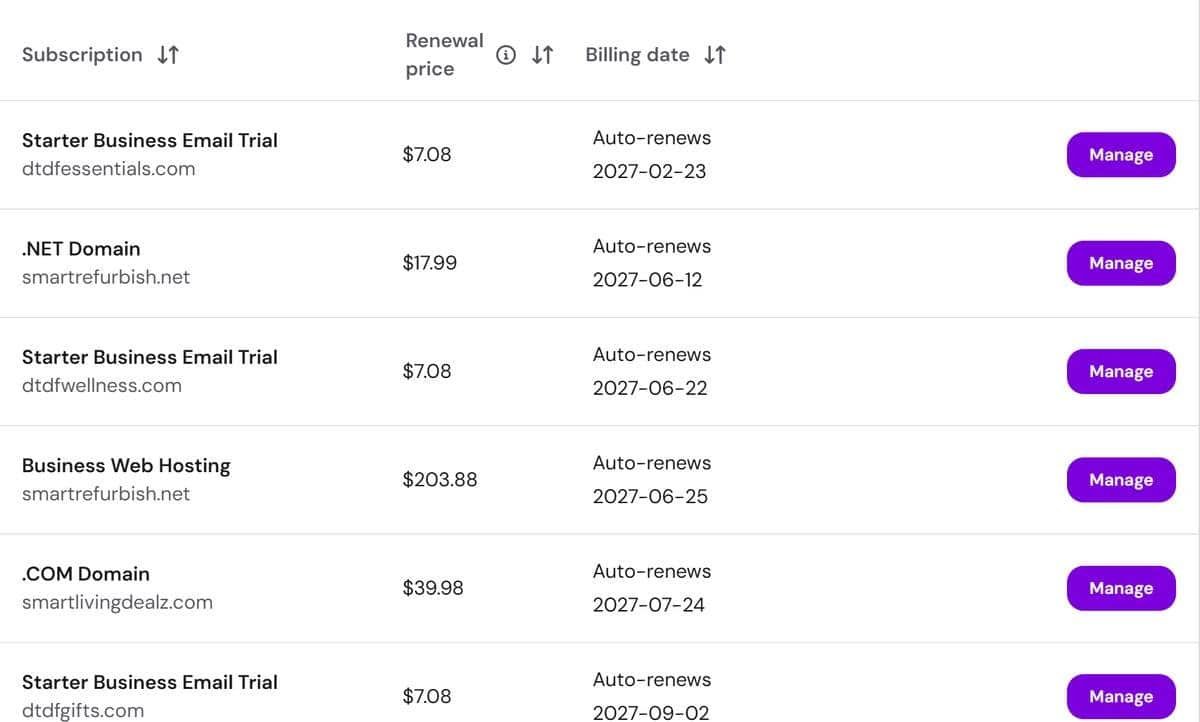
- Check what auto-renews. In hPanel, go to Billing → Subscriptions to see every service and its renewal price. I found several email trials set to renew there, so check for anything you don’t need.
- Claim the free domain. That way, you avoid buying one elsewhere in year one. Just note the renewal price.
- Put several sites on one plan. This is my biggest saving. Thirteen sites on one Business plan costs far less than paying for each separately.
Hostinger review: pros and cons
| Pros | Cons |
|---|---|
| Easy to use, even for non-developers | Renewal price is over three times the first-year price |
| Very cheap during sales | The best price needs a longer upfront commitment |
| Fast, helpful customer support | hPanel shows a lot of upsells and promotions |
| Up to 50 websites on the Business plan | You’re responsible for WordPress updates and security |
| Daily backups, free SSL and CDN included | Busy, image-heavy stores need optimising to score well on mobile |
Who Hostinger is (and isn’t) for
Hostinger is a great fit if you:
- Are a small seller or beginner who wants a store without hiring a developer
- Want low running costs, especially in your first year
- Plan to run more than one site, like a store plus an affiliate site or blog
- Value quick, friendly support when something goes wrong
It may not be the best fit if you:
- Run a very large store with heavy traffic, which needs cloud or dedicated hosting
- Want the same low price forever, since renewals are much higher
- Want no technical responsibility at all, in which case Shopify may suit you better
Hostinger review FAQ
Is Hostinger good for beginners?
Yes. I’m a seller, not a developer, and I built my store without any coding. hPanel and the WordPress installer do most of the work.
Is Hostinger good for WooCommerce?
Yes, on the Business plan or above. My WooCommerce store runs on Business, and Hostinger itself recommends Business or Cloud Startup for online shops.
Can I run more than one website on one plan?
Yes. The Business plan allows up to 50 websites. I run 13 on mine, including my store, my Amazon affiliate site and DTDF Digitals.
How much does Hostinger really cost?
My first year on Business cost $59.88 plus $11.98 in taxes. It renews at $203.88 a year, so budget for that from year two.
How long does it take for my domain to work?
Usually a few hours, but nameserver changes can take up to 48 hours to spread worldwide.
Do I get a free domain?
My plan included a free domain for the first year. After that, mine renews at $17.99 a year.
My Hostinger review verdict
After building 13 sites on it, including the store that sells my own products, my Hostinger review comes down to this: I’d recommend Hostinger to any small seller who wants a simple, affordable way to own their online store. It’s easy enough for a beginner, the support actually answers, and running several sites on one plan makes it remarkable value.
In short, be clear-eyed about the renewal price, keep your plugins updated, and buy during a sale.