Creatify Tutorial: How I Made an Amazon Product Ad From One Link (Step by Step)
Disclosure: this Creatify tutorial contains affiliate links. If you sign up through them, I may earn a commission at no extra cost to you. Creatify’s affiliate team also gave me access to a Pro workspace so I could finish this test. The steps, results and opinions are my own.
I sell a glass cup brush on Amazon UK through my shop, DTDF Home & Kitchen. I wanted a short video ad for it. However, I don’t have time to film, edit and record voiceovers. So I gave Creatify’s Ad Agent one thing: the link to my Amazon listing.
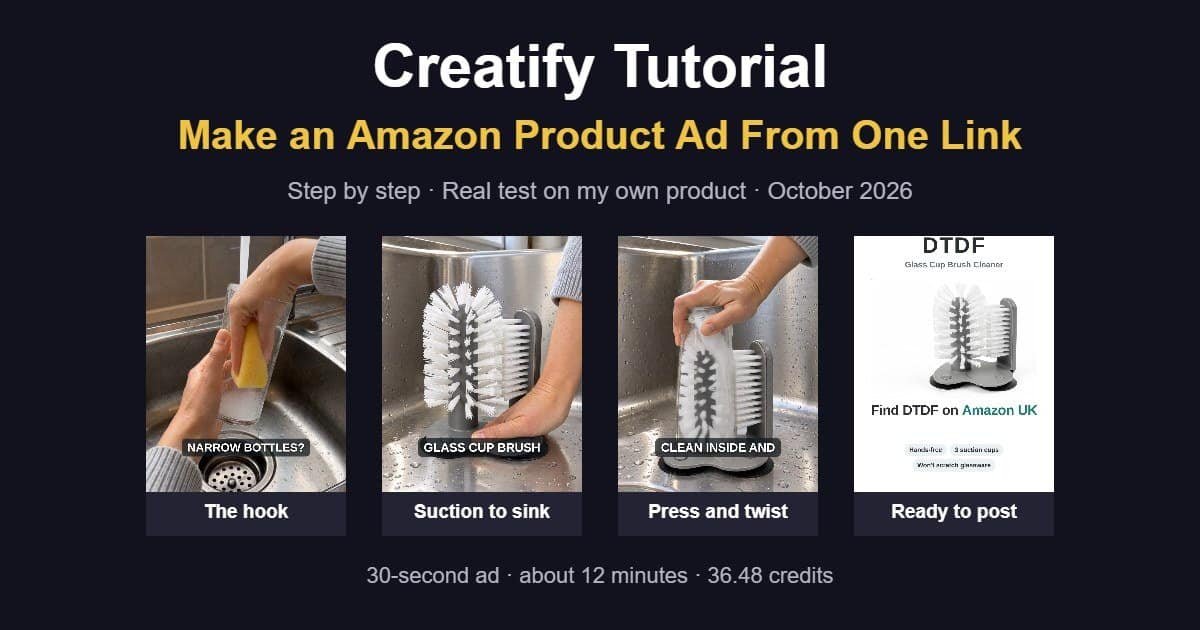
About 12 minutes later I had a finished 30-second vertical ad with a script, a British voiceover, music and five product shots. It cost 36.48 credits. Two small things looked wrong, so I asked for fixes, and it re-made just those shots for another 14 credits.
This Creatify tutorial shows you exactly how I did it, step by step, with screenshots from my own account. By the end you will know what to type, what to check, how to fix bad shots and how to get the finished ad onto Amazon and social media.
Creatify tutorial at a glance
| Detail | My test |
|---|---|
| Tool | Creatify Ad Agent |
| What I gave it | My Amazon UK listing link and a short brief |
| What I got | A 30-second, 9:16 vertical ad: script, British voiceover, music, 5 shots and an end card |
| Time | About 12 minutes, plus 5 to 6 minutes per fix |
| Credits used | 36.48 for the ad, 14.2 for two fixes |
| Plan | Pro (affiliate workspace). The free plan could not finish an ad |
| Best for | Amazon, eBay and Shopify sellers who need product ads without filming |
What you need before you start this Creatify tutorial
- A Creatify account on a paid plan. The free plan’s 10 credits ran out before it could finish one ad in my earlier test, so plan for at least Standard.
- A product link. I used my Amazon UK listing. Ad Agent reads the title, bullet points and photos from the page, so a good listing gives you a better ad.
- A short brief. In short, two or three sentences on the format, voice and the shots you want. I give you a copy-and-paste version below.
- Your own product photos (optional). If Ad Agent can’t read your link, you can upload photos instead with the + button.
Which Creatify plan do you need for this tutorial?
To begin with, Creatify works on credits. In my test, one finished 30-second ad cost 36.48 credits, and two fixes cost another 14.2. So that gives you a rough guide to how many ads each plan can make.
| Plan | Price per month | Credits per month | Ads like mine (approx.) |
|---|---|---|---|
| Free | $0 | 10 | Not enough to finish one ad in my test |
| Standard | $15 ($12 billed yearly) | 55 | About 1 ad, plus a fix or two |
| Pro | $55 ($44 billed yearly) | 280 | About 5 to 7 ads |
| Max | $95 ($76 billed yearly) | 730 | About 15 to 20 ads |
Prices in US dollars from Creatify’s pricing page in October 2026. Creatify changes its plans often, so check before you buy. Unused credits last two months.
My advice: if you only need an ad for one or two products a month, Standard is enough. If you want to test several ads per product, or make ads for a whole range, Pro gives you far more room. You can see Creatify’s current plans here.
Step 1: Open Ad Agent
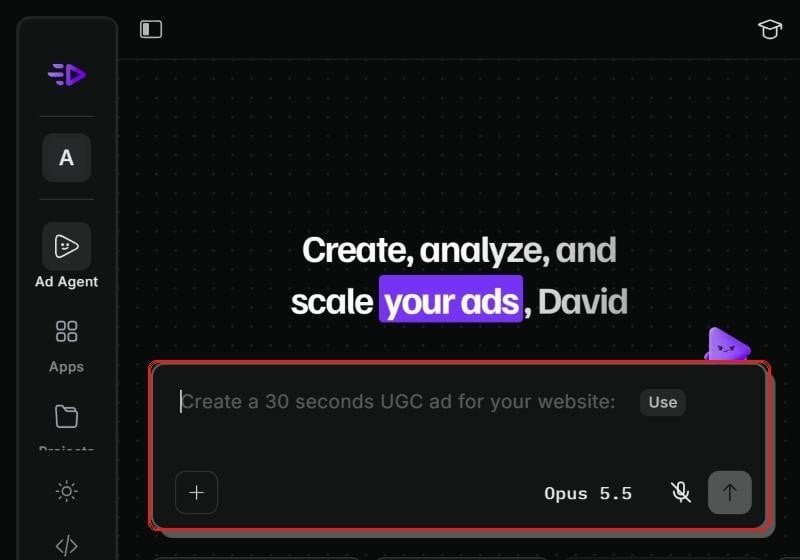
First, log in to Creatify and click Ad Agent in the left-hand menu. You will see a big message box, a bit like a chat app. This is where you tell Ad Agent what you want.
The + button in the box lets you upload your own photos or files. You do not need it if you are using a product link.
Step 2: Write your brief
This is the most important step in the whole Creatify tutorial. Ad Agent follows your brief closely, so the clearer you are, the less you will need to fix later.
Here is the exact brief I used in this Creatify tutorial. Copy it and change the details for your product:
Create a 30-second product ad video from my Amazon UK listing: [YOUR LINK]. Format: 9:16 vertical for TikTok, Instagram Reels and Facebook. Voiceover: friendly British English female voice; say '[BRAND]' as individual letters. Music: light, upbeat instrumental, no vocals. Show [SHOT 1], [SHOT 2] and [SHOT 3]. Only use features stated in the listing; no invented claims. End with a call to action to find [BRAND] on Amazon UK.Why each part matters:
- Length and format. 30 seconds in 9:16 works on TikTok, Reels, Facebook and YouTube Shorts, and on Amazon.
- Voice. Say which accent you want. If your brand name is letters, like DTDF, tell it to spell them out.
- Shots. Describe what the product actually does. For my brush: suctioned to a sink, a glass pushed down over the bristles and twisted, then clean glasses.
- “No invented claims.” In other words, this keeps the ad honest and stops it promising things your listing doesn’t say.
Step 3: Paste your link and send it
Paste your brief with your product link and press send. After that, Ad Agent gets to work on its own. You can watch every step in the chat.
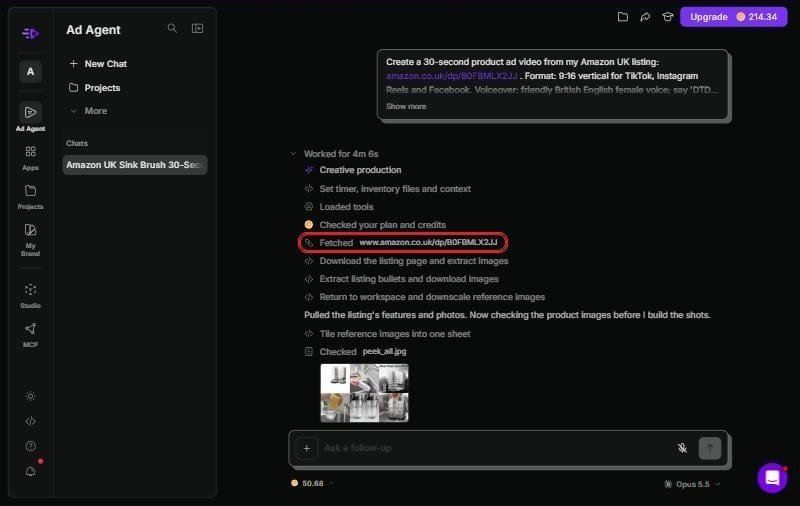
In my test it checked my plan and credits, fetched my Amazon listing, pulled out the bullet points and photos, and checked the product images before planning any shots.
Using eBay or Shopify? I tested with Amazon UK. Try your eBay or Shopify product link in the same way. If Ad Agent can’t read the page, upload three or four clear product photos with the + button and describe the product in your brief instead.
Step 4: Let it build the footage
Next, Ad Agent writes the script, makes the voiceover and music, and generates each shot. As each piece is ready, it appears under Footage, so you can see the ad coming together.
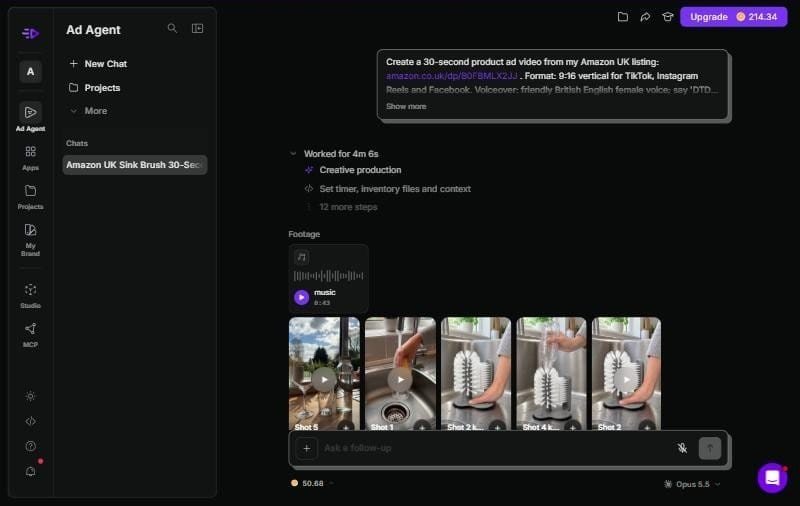
This took about 12 minutes for my 30-second ad. In addition, it checked its own work along the way. It dropped a water-bottle shot because the bottle never actually went over the brush, and it re-made the sink shot after the brush’s back panel came out bent. I didn’t have to ask.
Step 5: Check the finished ad like a buyer
When it is done, Ad Agent writes a short summary of the ad: the story, the voice, the music and where every claim came from. Read it first, and then play the video with the sound on.
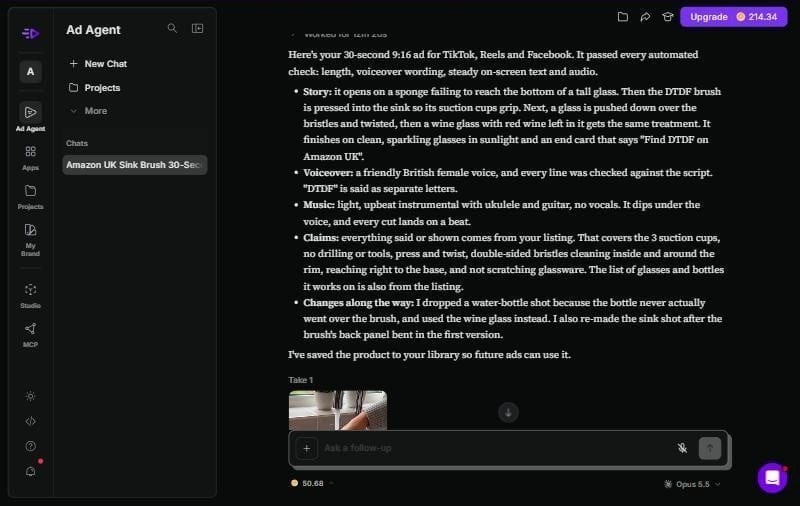
My finished ad had five shots:
- A sponge failing to reach the bottom of a tall glass (the hook)
- The brush pressed onto the sink so the suction cups grip
- A glass pushed down over the bristles and twisted
- A close-up of the bristles reaching the bottom of the glass
- Clean glasses in sunlight and a “Find DTDF on Amazon UK” end card
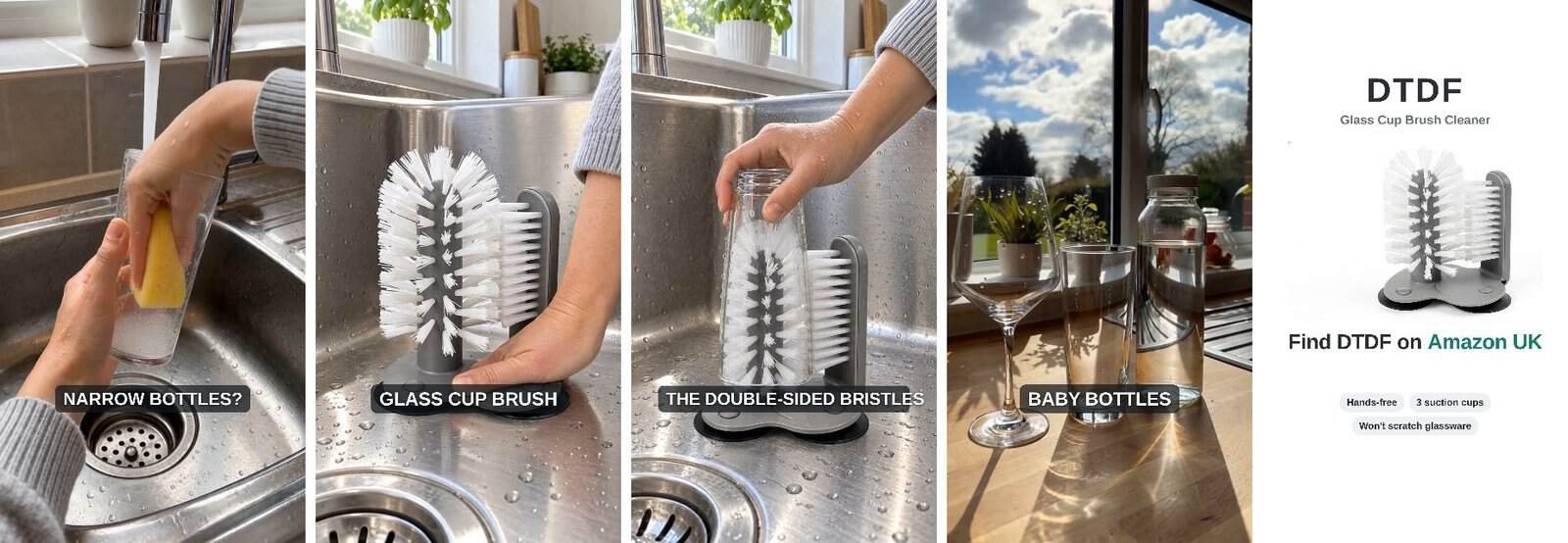
Before you post anything, check these five things:
- Hands and bodies. Even now, AI still gets these wrong. Count the hands and watch how people hold things.
- Does the product work like the real one? Watch every moment the product is used.
- Is every claim true? Compare the voiceover and captions with your listing.
- Brand name. Listen to how the voice says it.
- The ending. Make sure the call to action points to the right place.
Step 6: Fix any shot with a follow-up
This is where Ad Agent really saves time. You don’t start again. Instead, you just type what is wrong in the follow-up box, and it re-makes only the shots that need it.
My first version had two problems.
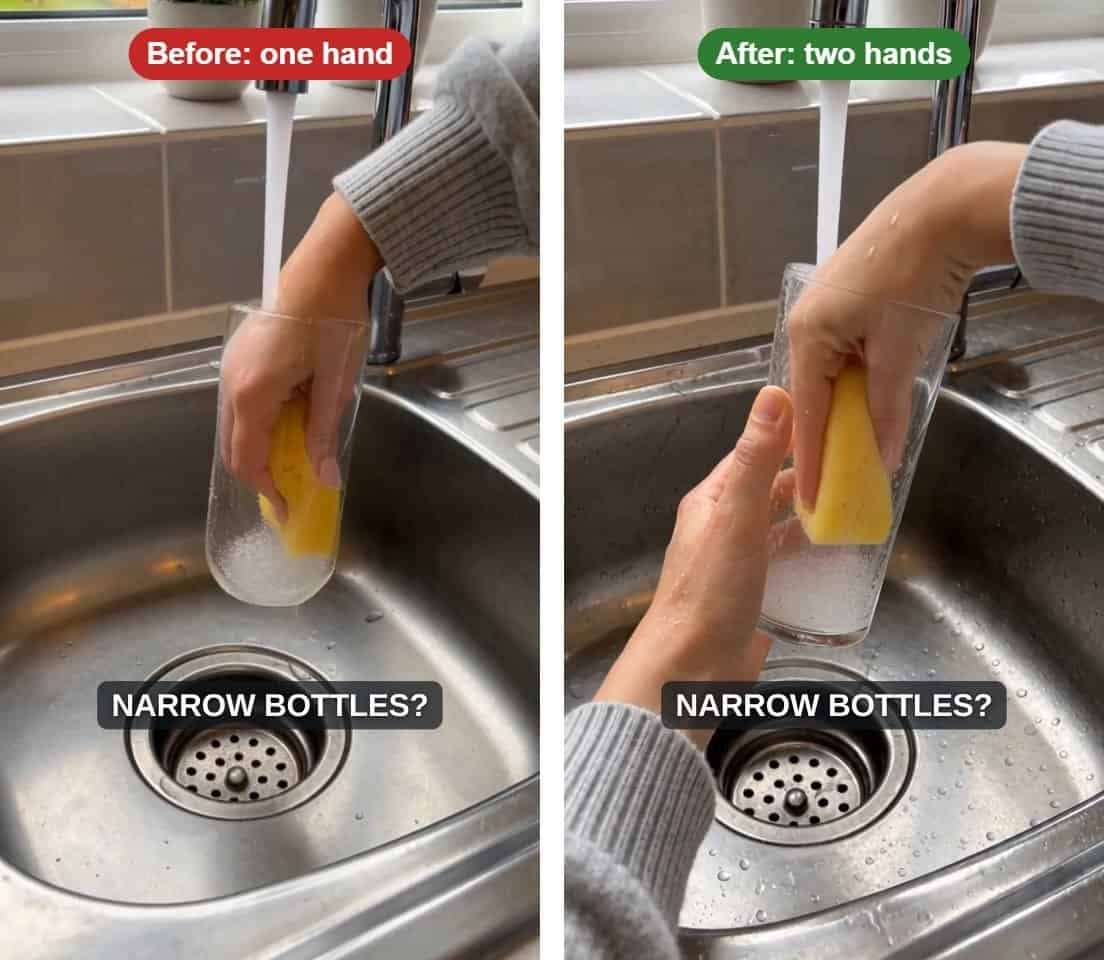
Fix 1: someone washing a glass with one hand
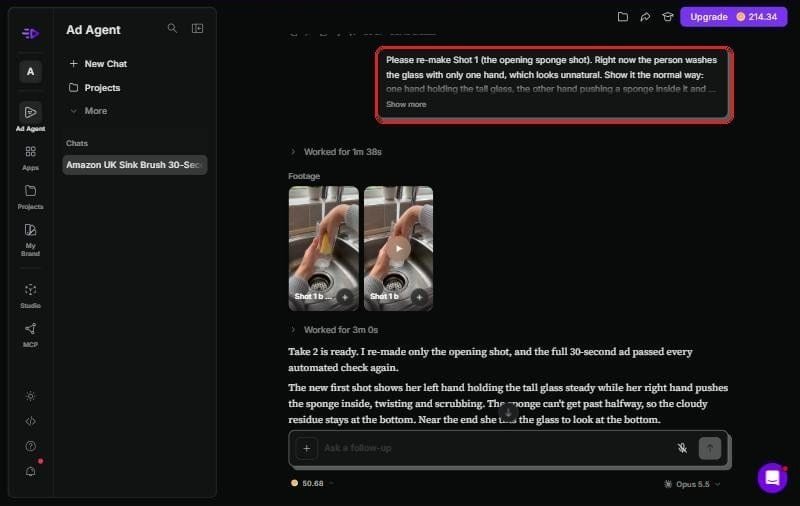
In the opening shot, a person was washing a tall glass with only one hand, which nobody does. I sent this:
Please re-make Shot 1 (the opening sponge shot). Right now the person washes the glass with only one hand, which looks unnatural. Show it the normal way: one hand holding the tall glass, the other hand pushing a sponge inside it and struggling to reach the bottom. Keep everything else the same.It re-made just that shot in about 5 minutes, for 3.71 credits.
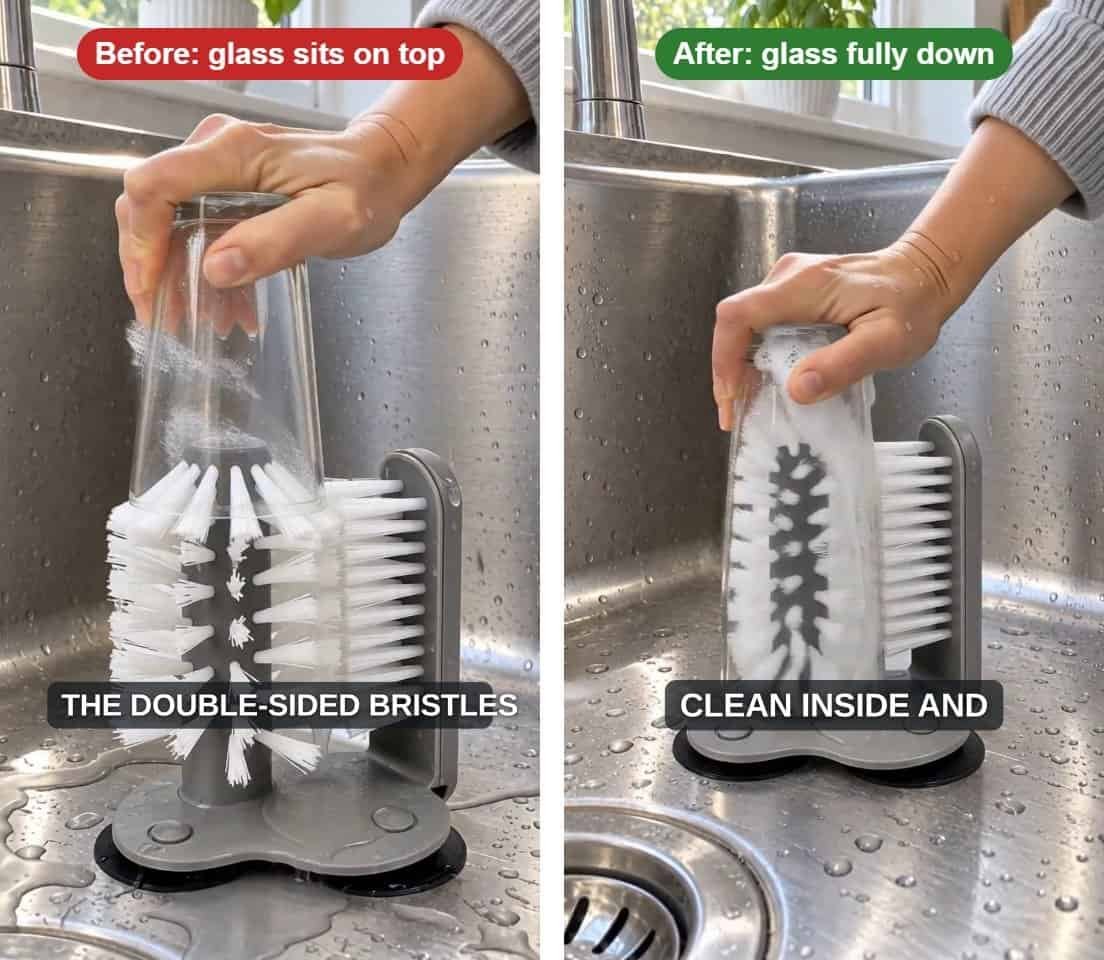
Fix 2: glasses that didn’t really fit the brush
In the glass shots, some glasses sat on top of the bristles instead of sliding down over them. For a product video, that matters. After all, buyers need to see how it really works. I asked for each glass to slide all the way down to the base and then twist, like a tall drinking glass does.
As a result, Ad Agent re-made the glass shots and swapped the wine glass for a tall straight glass, because it couldn’t make the wine glass fit convincingly. That took about 6 minutes and 10.49 credits.
Tip: describe the problem and the fix, and say “keep everything else the same”. That way you only pay for the shots you change.
Step 7: Download your ad and post it
Once you’re happy, click the finished take to open it, then click Download. You can also use Edit with AI for more changes, or Post to social.
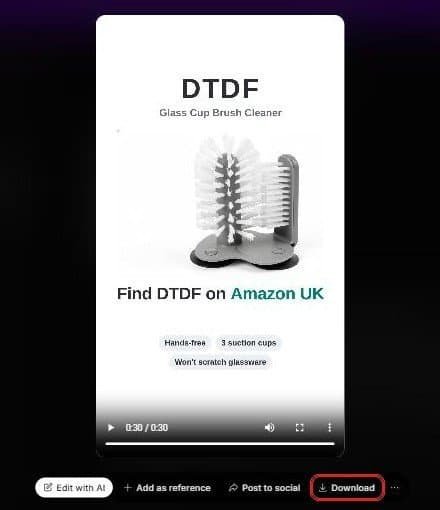
Also, paid plans export without a watermark, which matters for Amazon. Here is where I used mine:
- Amazon listing: in Seller Central, go to Catalogue, then Upload & Manage Videos. Attach it to your product and choose “Product overview”. Amazon reviews videos before they go live, which can take up to 72 hours.
- TikTok, Instagram Reels, Facebook and YouTube Shorts: the same 9:16 file works everywhere. Turn on each platform’s AI-generated label when you post.
- Your own website: add it to your product page as a short version of your demo.
Amazon does not allow links or website addresses in listing videos. My end card only says “Find DTDF on Amazon UK”, so check yours before uploading.
Creatify tutorial tips: better ads, fewer credits
- Fix your listing first. Ad Agent writes from your title, bullets and photos. Clear bullet points give you a clear script.
- Be specific about shots. “A glass pushed down over the bristles and twisted” works far better than “show the product working”.
- Ask for one change at a time. For example, small, clear fixes cost a few credits. By contrast, starting again costs the full 36.
- Keep the first take. Each fix creates a new take. Because of this, you can always go back.
- Make short versions from the same ad. Ad Agent suggests follow-ups like a 15-second cut for TikTok, which is cheaper than a new ad.
Common Creatify tutorial mistakes to avoid
- Testing on the free plan only. 10 credits will not finish an Ad Agent video, so you will not see what it can really do.
- Posting without watching it properly. AI mistakes are small but obvious to buyers, like the one-handed washing in my first take.
- Letting it invent features. Always say “only use features stated in the listing”.
- Forgetting the AI label. TikTok, Instagram, Facebook and YouTube all ask you to label realistic AI content.
- Using a link-filled ending on Amazon. Keep the call to action simple, like “Find us on Amazon UK”.
What Ad Agent did well, and where it fell short
After following every step in this Creatify tutorial on my own product, here is my honest summary.
| What worked | What didn’t |
|---|---|
| Built a full ad from one Amazon link | Free plan is too small to finish an ad |
| Script used only claims from my listing | Made physical mistakes (one hand, glass not fitting) |
| Checked and fixed some of its own mistakes | You still need to watch every shot yourself |
| Re-made single shots cheaply (3.71 and 10.49 credits) | Credits add up if you need lots of versions |
| Ready for TikTok, Reels, Shorts and Amazon | AI scenes need an AI label on social media |
For me, the biggest surprise was how much it checked its own work. On the other hand, the biggest lesson was that you still need a human eye. AI video is very good now, but it can still get simple physical details wrong, and buyers notice those straight away.
Creatify tutorial FAQ
How long does Creatify take to make an ad?
My 30-second ad took about 12 minutes from sending the brief to the finished video. Each fix took 5 to 6 minutes.
How many credits does one ad use?
My finished 30-second ad used 36.48 credits. Two fixes used another 14.2, so about 50 in total.
Can I make a Creatify ad on the free plan?
Not a finished Ad Agent video, in my experience. The free plan’s 10 credits made the script, voiceover, music and three scenes, then ran out before rendering.
Does Creatify work for eBay and Shopify sellers?
Ad Agent builds from a product link or your own photos and brief. I tested with Amazon UK. If your eBay or Shopify link doesn’t work, upload your product photos instead.
Can I put a Creatify ad on my Amazon listing?
Yes, as long as it has no watermark, links or website addresses. I uploaded mine through Upload & Manage Videos in Seller Central, and Amazon reviews it before it goes live.
Do I need to say the ad is AI-generated?
On social media, yes. Use each platform’s AI label for realistic AI scenes and people.
My Creatify tutorial verdict for small sellers
This Creatify tutorial comes down to one thing: if you write a clear brief and check every shot, Ad Agent can turn a product link into a usable ad in minutes. It is not perfect, and you must watch for AI mistakes. Still, fixing them is quick and cheap.
Overall, for a small seller like me, who can’t spend a day filming and editing, that is a real time-saver. I would start on the Standard plan, make one ad for your best-selling product, and see how it performs before scaling up.
If you liked this Creatify tutorial and want to see how it compares with an AI presenter tool, read my Creatify vs Colossyan test. For other options, see my guide to the best AI video tools for online sellers, or my Reeporter AI review if you want to turn photos into short clips. You can also find every tool I use on my Tools page.